PruneR

Reviewing PRs is hard. Dependabot PRs flood your list, and test file changes add noise to every review. PruneR helps you cut through the clutter:
- 🧹 Hide dependabot / dependency PRs from the PR list with one click
- 👁️ Auto-mark test files as “Viewed” on PR file pages so you never have to look at
.test.tsnoise again
Hence the name PruneR
[!NOTE]
This is for very3 lazy and my kinda people, who don’t want to do anything manually.
Features ✨
1. Toggle dependency PRs
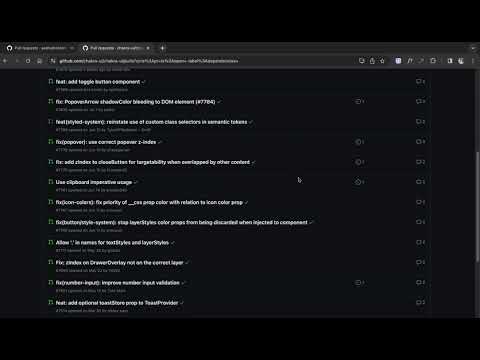
Click the PruneR icon in your toolbar while you’re on a GitHub PR list page
(https://github.com/org/repo/pulls). It adds -label:dependencies to the URL,
hiding all dependabot / dependency PRs in one click. Click again to show them.
2. Auto-mark test files as viewed
When you open a PR’s Files changed tab (/pull/*/files), PruneR
automatically checks the “Viewed” checkbox on:
| Pattern | Examples |
|---|---|
*.test.{ts,tsx,js,jsx,mjs,cjs} |
button.test.tsx |
*.spec.{ts,tsx,js,jsx,mjs,cjs} |
utils.spec.ts |
__tests__/ |
__tests__/foo.ts |
test/ or tests/ |
test/setup.ts |
__mocks__/ |
__mocks__/fs.ts |
__fixtures__/, fixtures/ |
fixtures/data.json |
__snapshots__/, *.snap |
__snapshots__/button.test.tsx.snap |
*.stories.{ts,tsx,js,jsx} |
button.stories.tsx |
mock/, mocks/ |
mocks/handlers.ts |
These files are still visible in the diff — they’re just marked “Viewed” so they collapse out of your review flow. Focus on the actual logic changes.
Toggle on/off: Right-click the PruneR icon in your toolbar and select “Auto-mark test files as viewed” to enable or disable this feature. A checkmark ✓ means it’s active.
Installation

 and other Chromium browsers
Install from the latest release 📦
Prefer to run it locally, or want a version before it clears Web Store review?

- Download the
.zipfrom the latest release - Unzip it somewhere you’ll keep it — Chrome loads the extension from this folder every time it starts
- Open Chrome and navigate to
chrome://extensions/ - Enable “Developer mode” (toggle in the top-right corner)
- Click “Load unpacked” and select the unzipped folder
- The PruneR icon should now show up in your toolbar
Demo 🎥
Development
git clone https://github.com/aashutoshrathi/PruneR.git
cd PruneR
Then load the folder as an unpacked extension in Chrome:
- Go to
chrome://extensions/& enable Developer Mode - Click “Load unpacked” and select the cloned folder
Publishing
A new release triggers a GitHub Actions workflow that:
- Checks the manifest version matches the release tag
- Builds the ZIP package
- Publishes to the Chrome Web Store (signed with the Verified CRX key)
- Attaches the ZIP to the release
To publish a new version:
- Bump
versioninmanifest.json - Commit:
git commit -m ":arrow_up: bump: vX.Y.Z" - Tag:
git tag vX.Y.Z - Push:
git push && git push --tags - Create a release from the tag on GitHub — the workflow handles the rest
License
MIT © Aashutosh Rathi